Guide
Live captions for events: screens, languages and readability
Where to put them, how many languages to show, what to do in a bilingual session and how to make them readable from the back row.
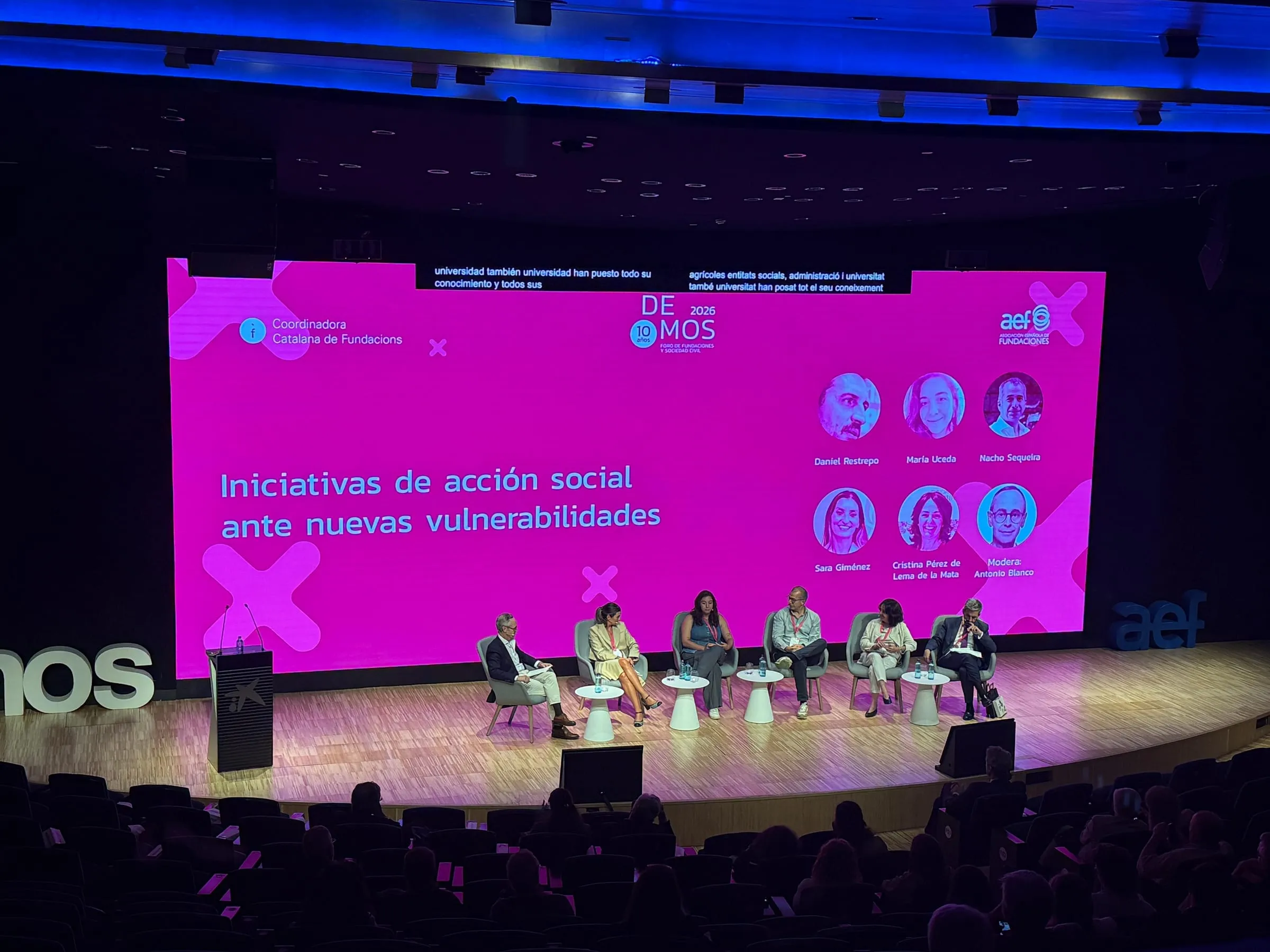
Live captions turn what is said on stage into text that appears on the room’s screens as people speak. Unlike the interpretation each attendee follows on their phone, the audience does not have to do anything here: they just look up. That makes captions one of the simplest ways to help an event reach more people.
What are live captions?
They are a transcript of the speaker’s voice, produced as they talk and shown on screen. They can appear in the language being spoken or translated into others. At an event they do several jobs at once: they help people who find it hard to hear, people following a talk in their second or third language and people sitting at the back of a noisy hall.
With Captions, the part of Live built for screens, AI produces that text in real time from the microphone signal.
Which screens can show them?
Almost any screen already in place:
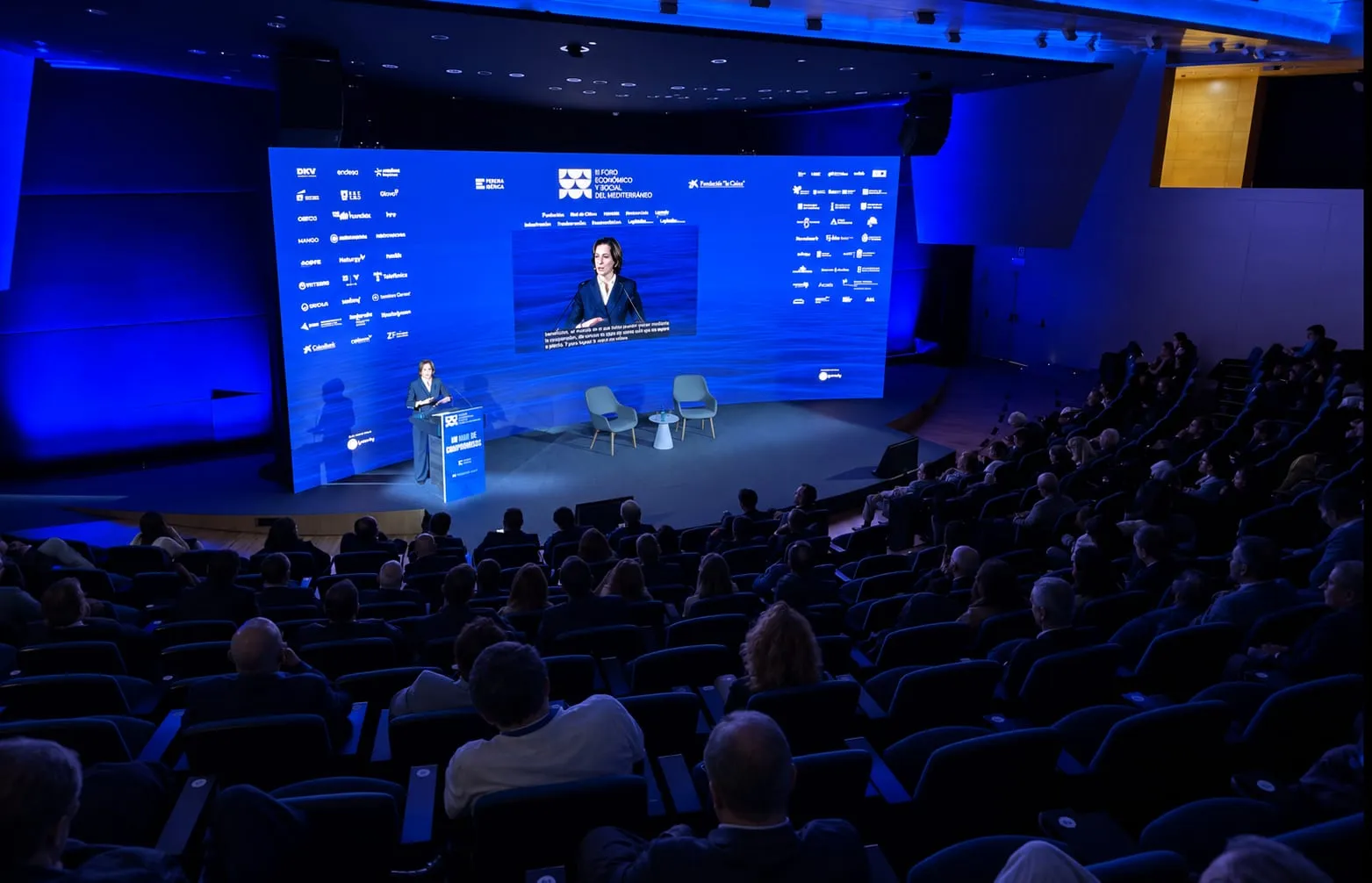
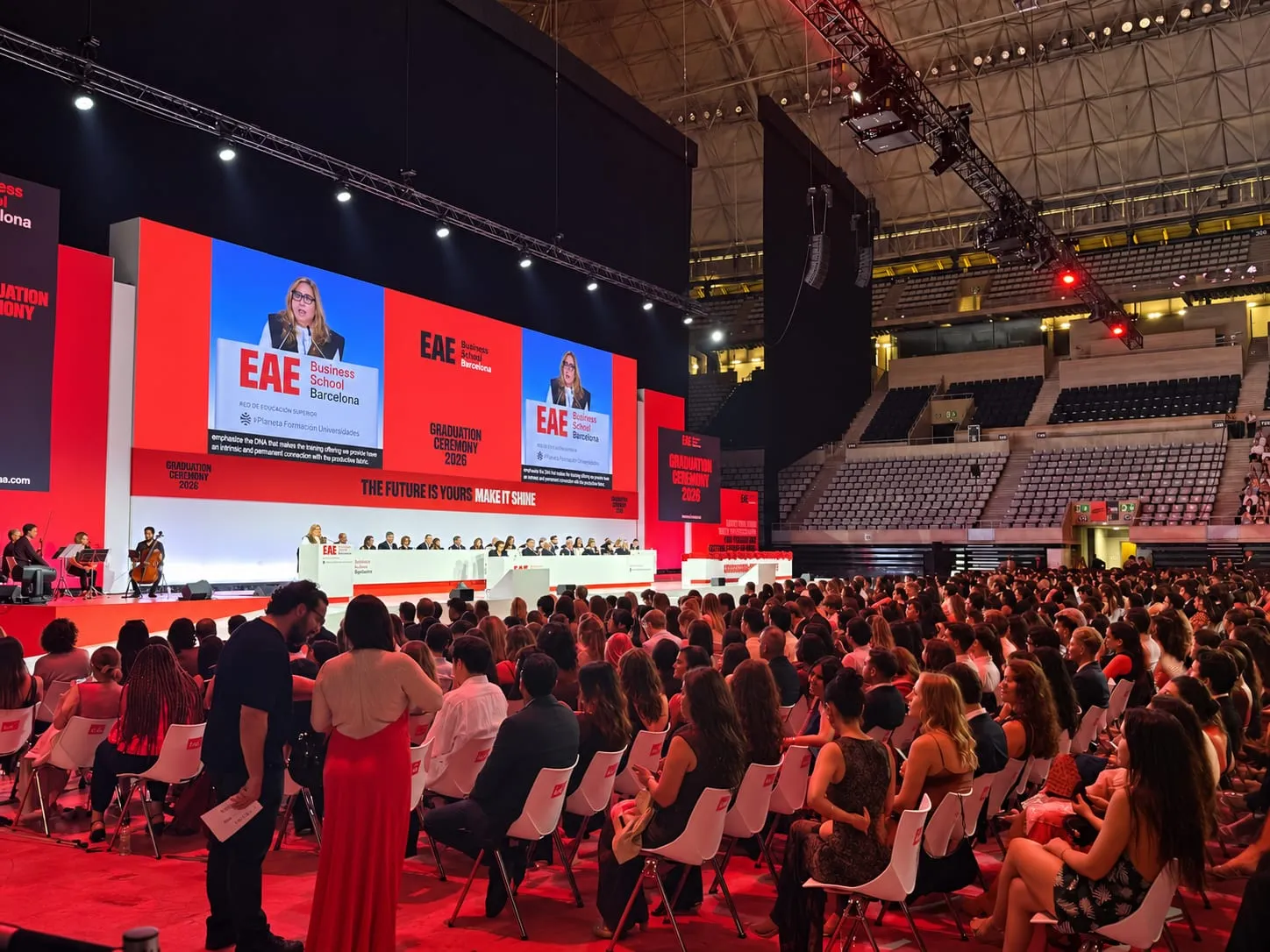
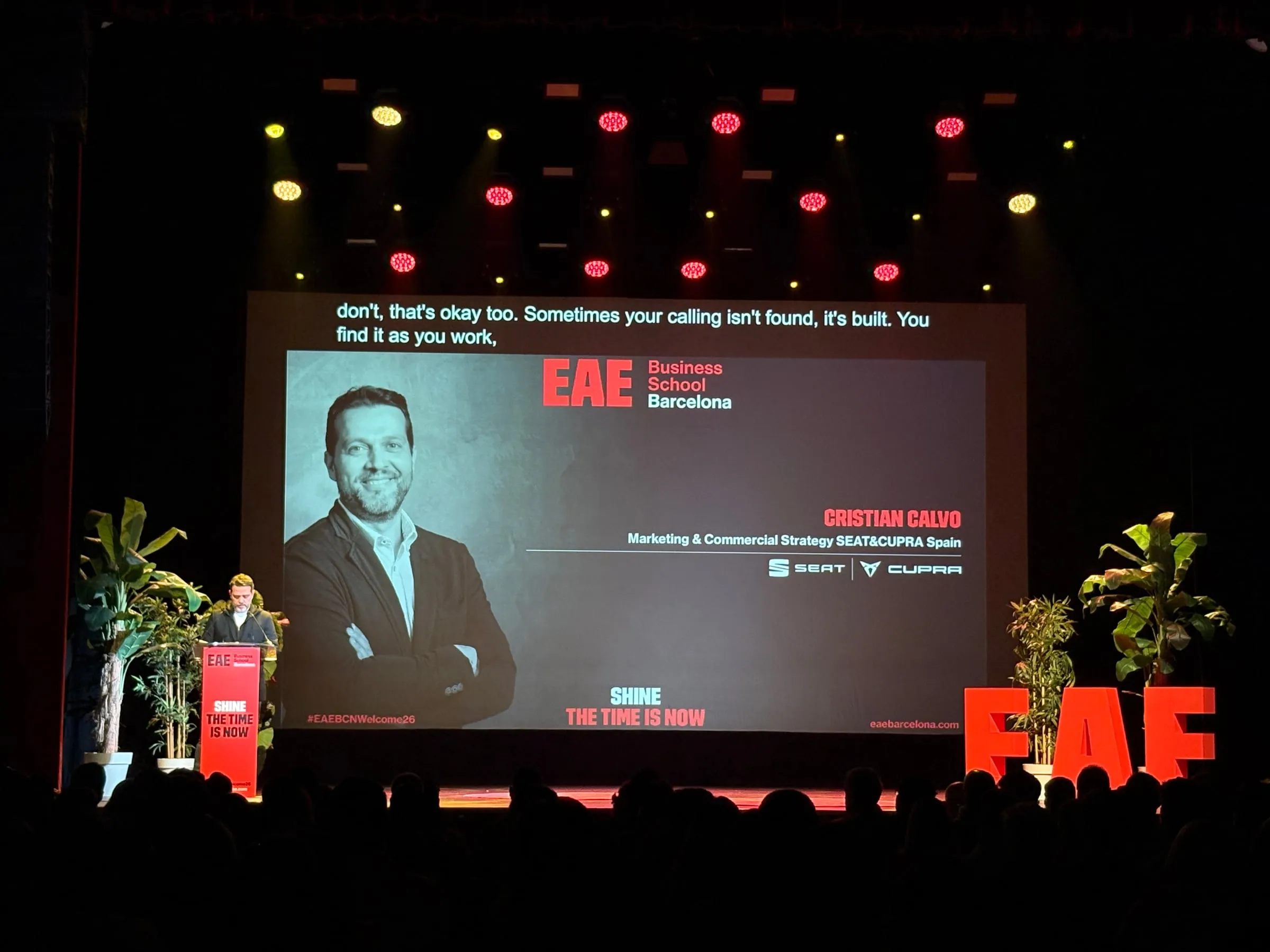
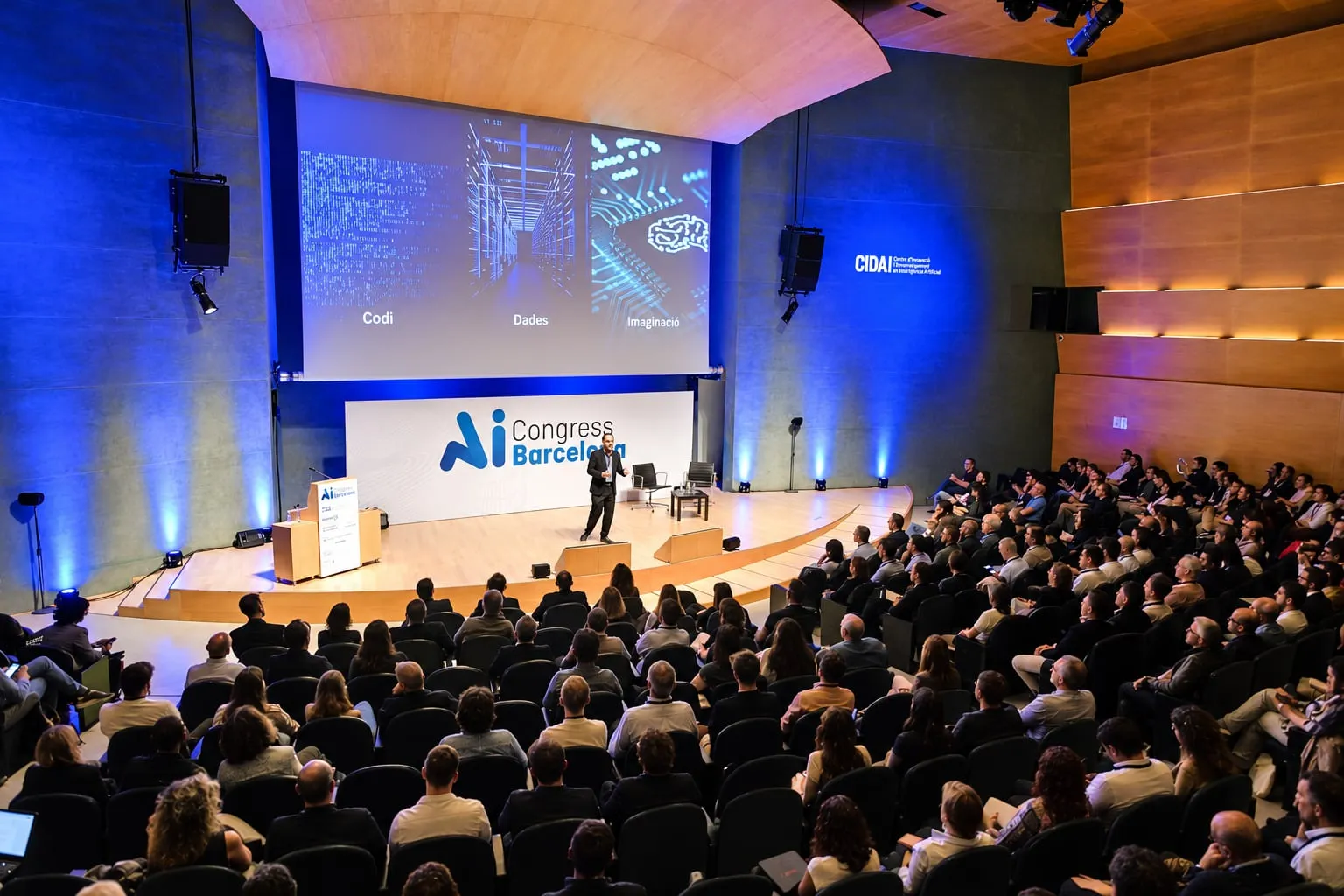
- The main screen or the LED wall on stage.
- Side screens, common in large auditoriums.
- A narrow strip below the stage, which keeps the main image clear.
If the event is also streamed, captions can go into the production through tools such as vMix or OBS, or appear inside the video player on your own website.
How many languages fit on screen?
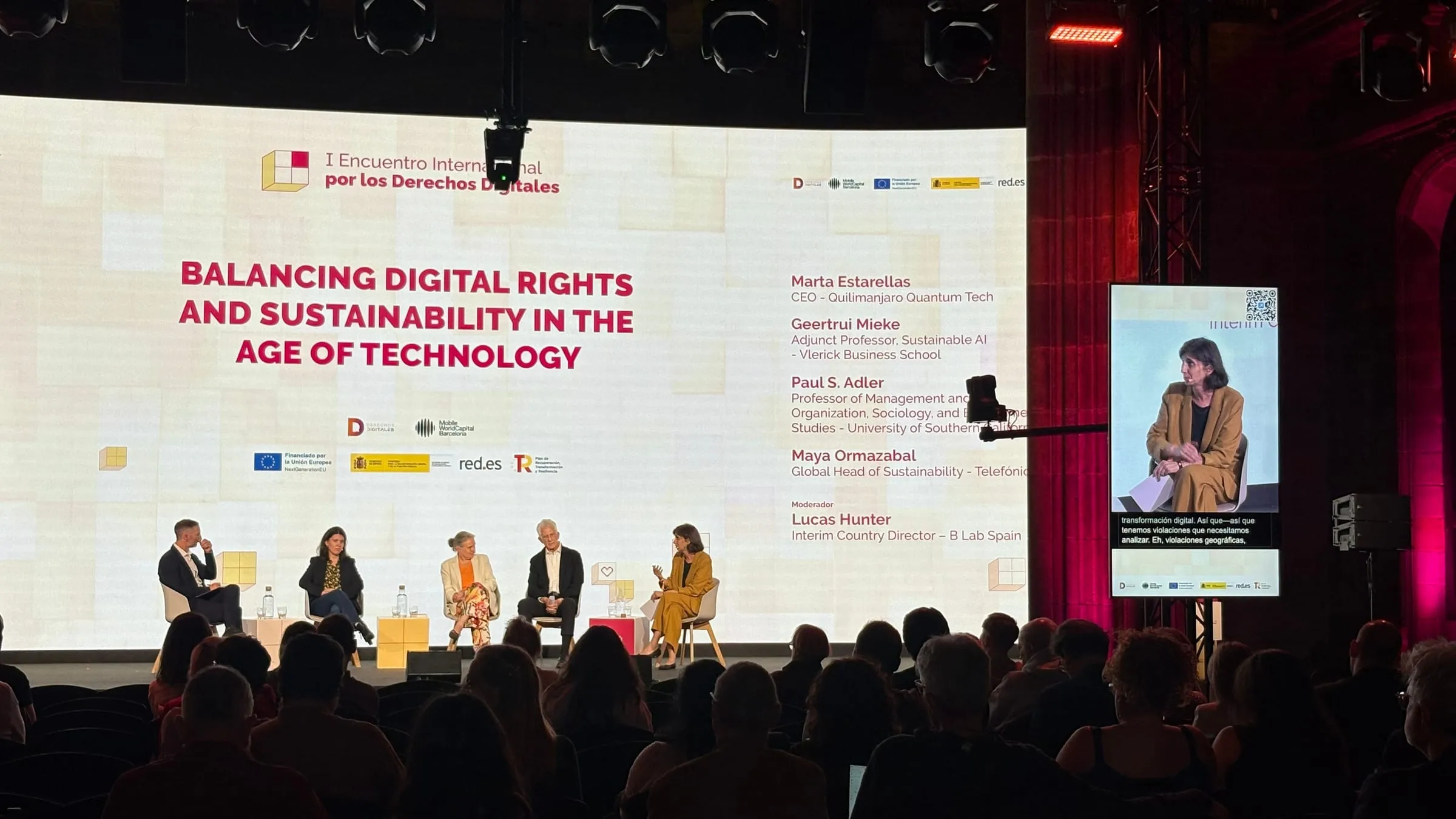
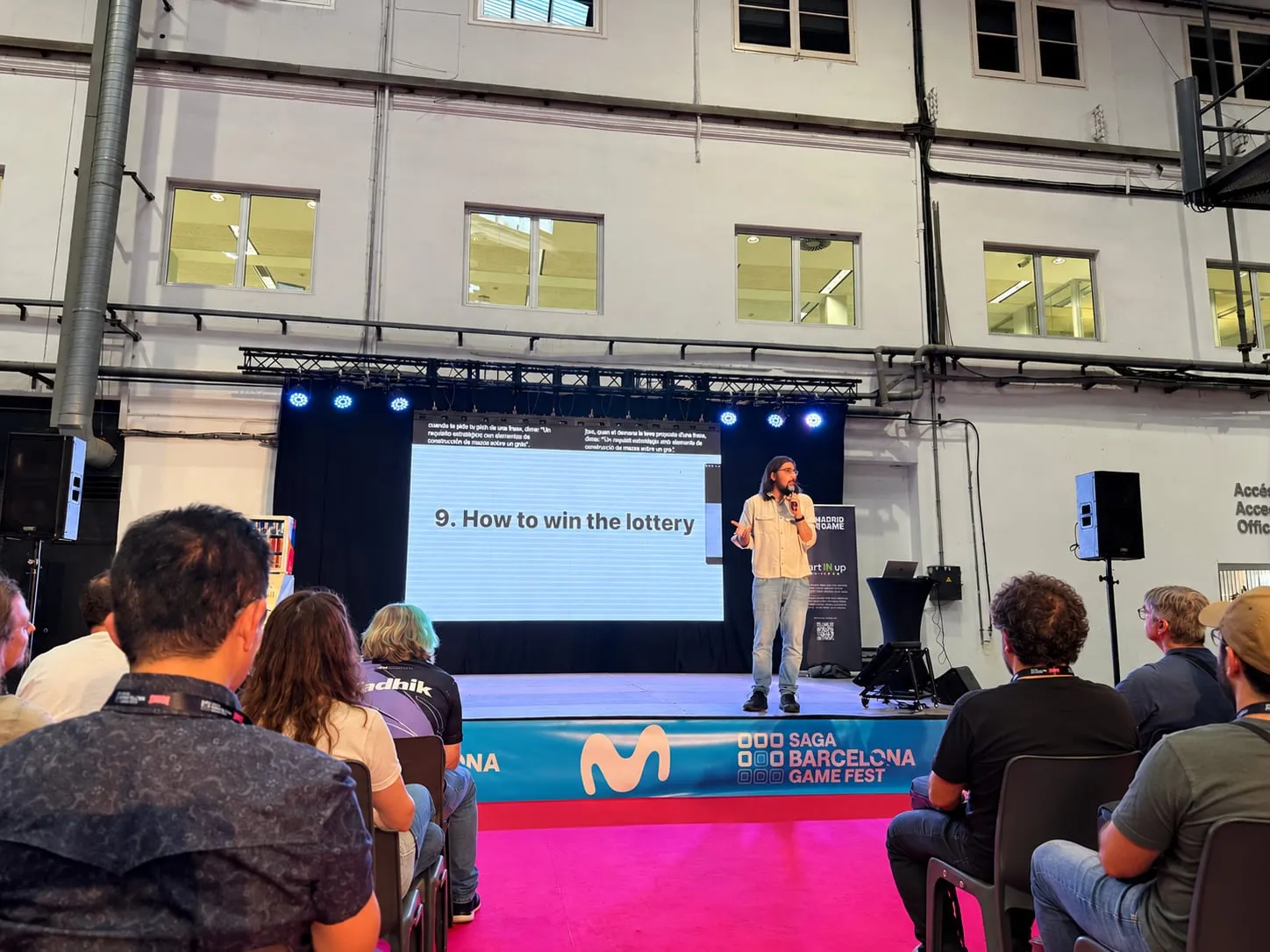
It depends on the audience. The most common choice is the speaker’s language or the room’s, or both together on one screen. When the crowd is very international, up to four languages can run simultaneously, each in its own strip, with a single microphone and one person at the controls.
A practical rule: the more lines share a screen, the bigger that screen needs to be and the closer it should sit to the audience.
What happens in a bilingual session?
In panels and debates, participants often switch languages. That is what Conditionals mode is for: instead of setting a source language, you define a pair, say English and Spanish. When someone speaks English, the caption comes out in Spanish; when they move to Spanish, it comes out in English. The switch is automatic and nobody has to touch a control during the session.
Can they match the look of the event?
Yes. Captions do not have to look like a last-minute add-on. You choose the typeface, colours and position so they sit naturally within the event’s visual identity and each screen’s format, landscape or portrait.
How do you make them easy to read?
Readability comes down to a few decisions, and each one counts:
- Number of lines. Two or three at a time is a good balance: enough context without covering the picture.
- Transition. A gentle fade between blocks of text is easier on the eyes than an abrupt cut.
- Contrast. Light text on a dark background, or the reverse, always with enough difference.
- Size. Set for the back row, not the front one.
- Vocabulary. A glossary loaded beforehand with speakers, brands and technical terms prevents mistakes in exactly the words people notice most.
On the Live page you can play with these settings and see how they would look in a room.
To explore every option, Captions covers each screen in detail and Backstage shows how each room is configured. If you organise congresses or trade fairs, Link3rs for events sums it up. And if you already have a date and a venue, get in touch.